09 iPhone · iOS 17
Houseplant care that learns your home.
Tell Hand Plant which plants you have and where they live. It works out when each one needs water and food, reminds you, and learns from how fast your soil actually dries.
Preparing
CH 01
Today, room by room
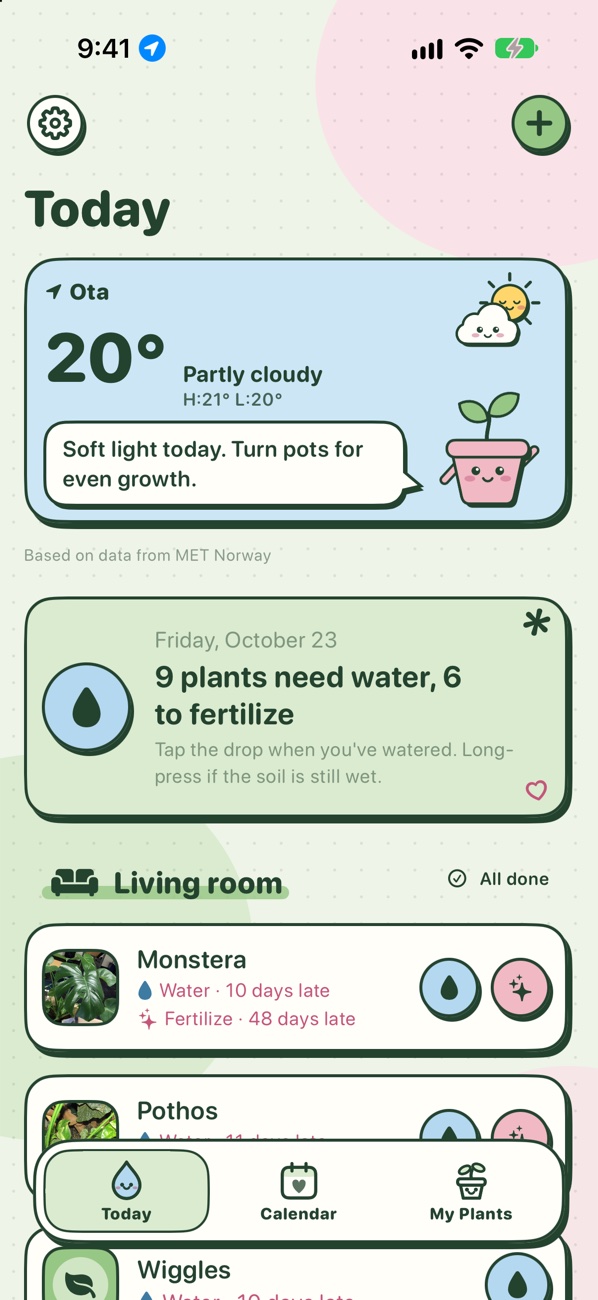
Open the app and it lists what needs water or food today, grouped by room. One tap marks a plant done, and you have 8 seconds to undo it. "All done" finishes a whole room.
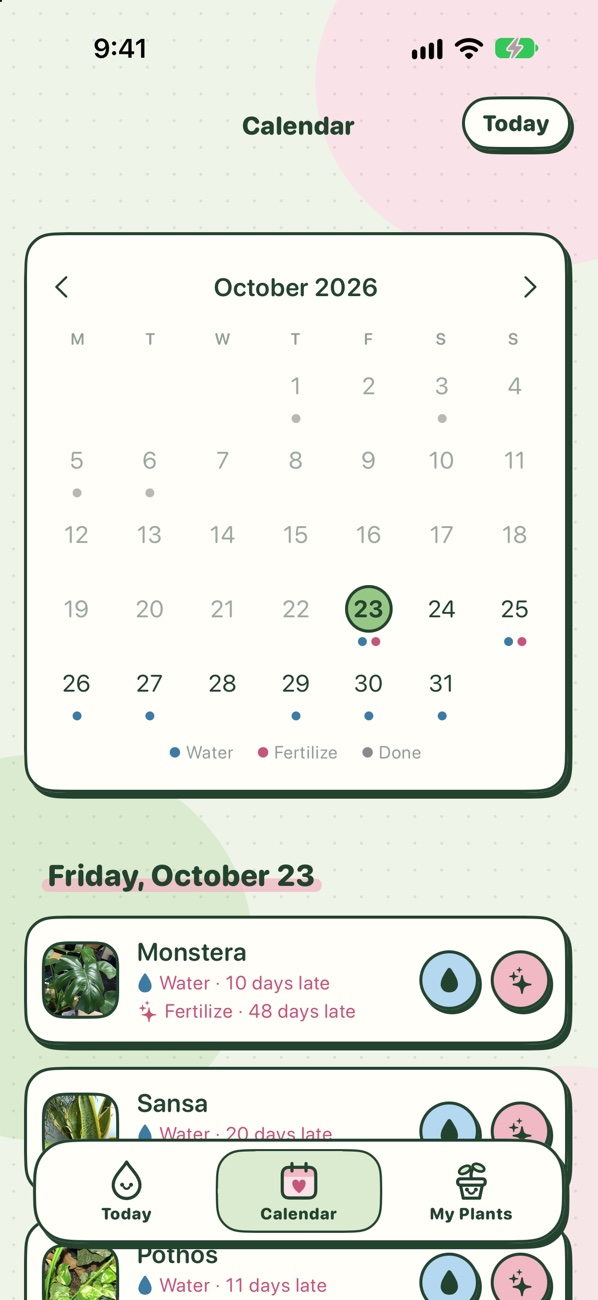
Not today? Swipe a plant to push it to tomorrow. The week ahead sits underneath, and the Calendar shows the whole month.
- Reminders
- One notification on each day that has care due, at a time you choose, plus the badge on the app icon.
- Rooms
- Each room has an icon and a light level. Add, rename, reorder and delete them.
- My Plants
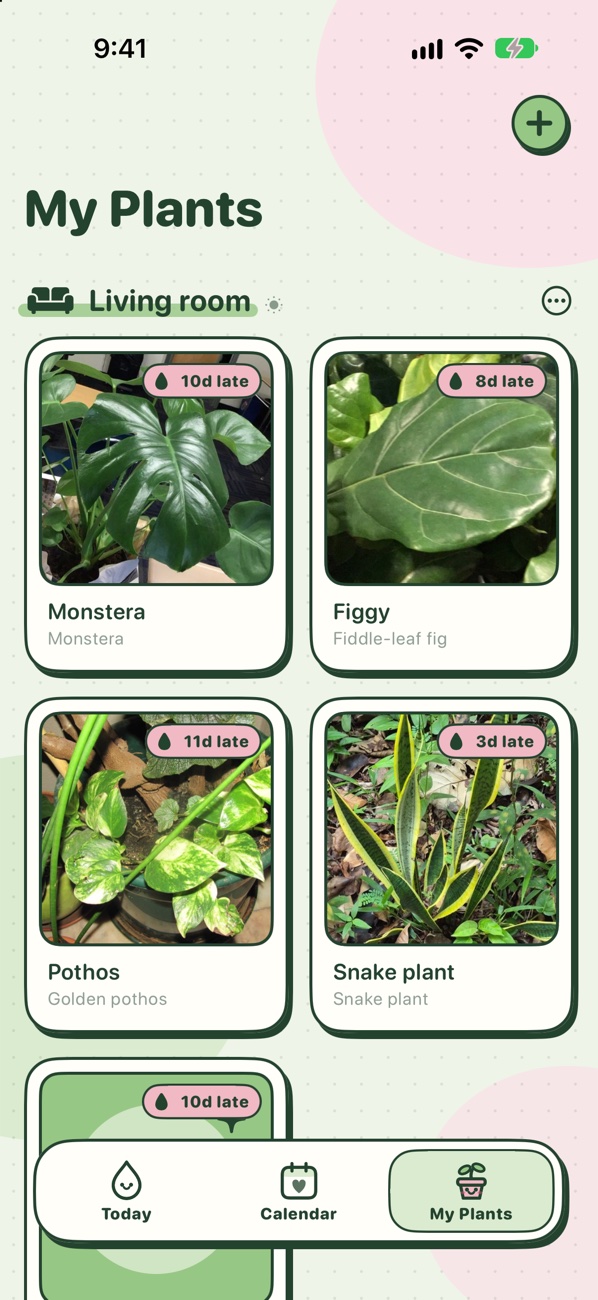
- Photo cards by room, each with a chip that shows its water status. Touch and hold a card to water it or move it to another room.
CH 02
Schedules that fit your home
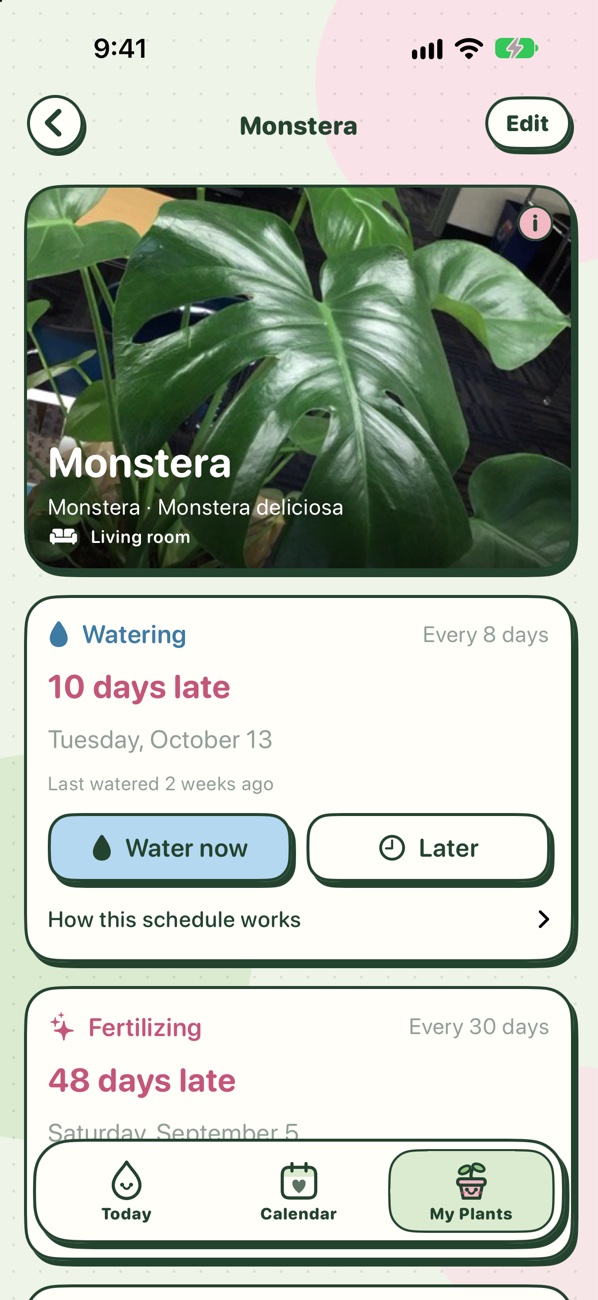
Every plant in the library comes with its own watering and feeding rhythm. Hand Plant fits it to your pot's size and type, the light where the plant sits, and its winter rest.
Then it learns. If the soil is still wet when a reminder comes, say so, and future waterings move further apart. If it was already dry, they move closer together. You can also set your own schedule.
- Plant screen
- The next watering and feeding, the history, and a care guide.
- Wrong spot
- A warning if the plant's spot is too dark or too sunny for it.
- No feeding
- Feeding pauses during the winter rest, and is off for plants that shouldn't be fed, like a Venus flytrap.
CH 03
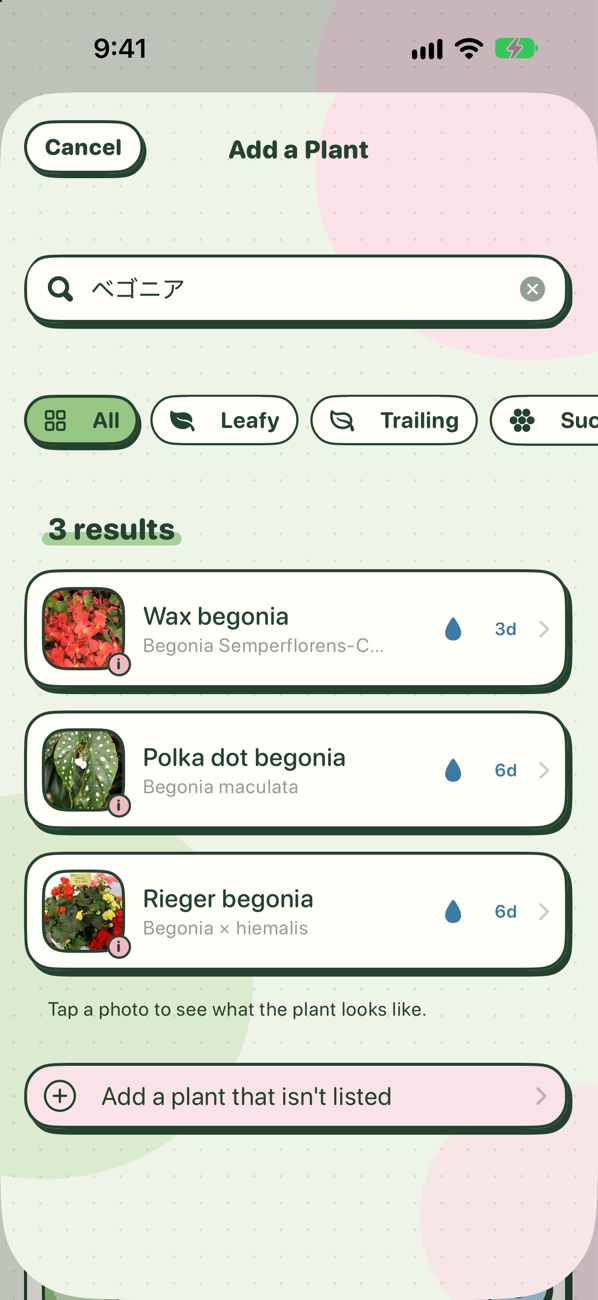
251 plants, in English and Japanese
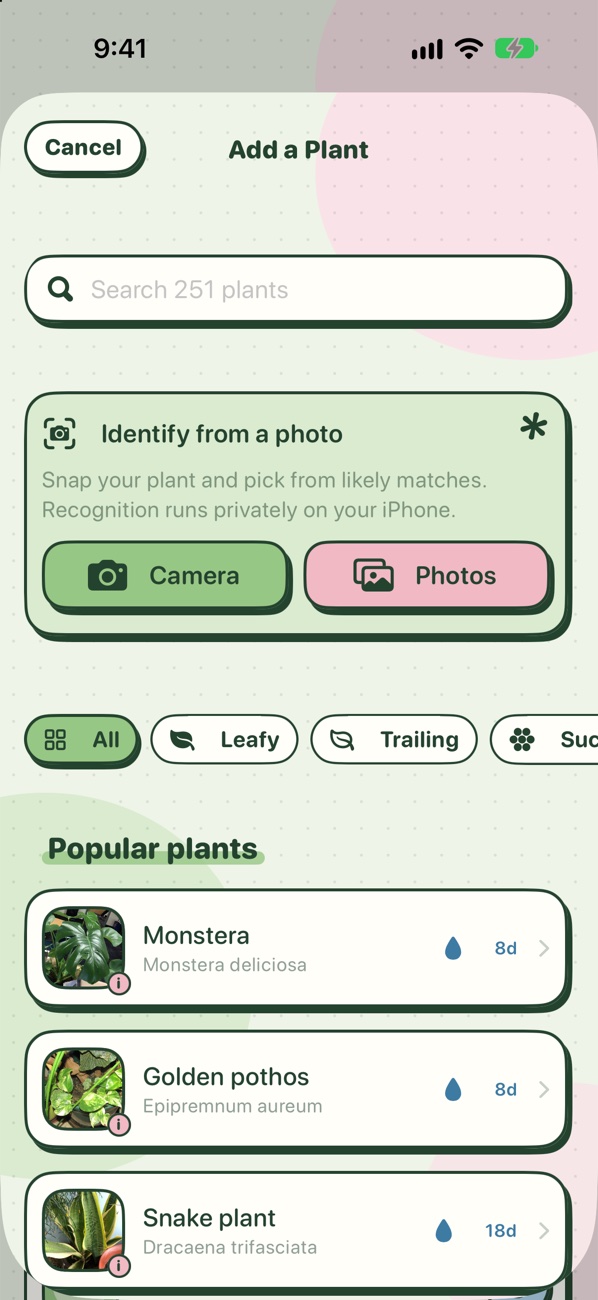
167 houseplants and windowsill herbs, plus 84 garden-centre plants that are popular in Japan: garden flowers, trees and fruit, and vegetables. Each one has example photos and a care guide.
- Search
- By common or scientific name, or by the name on a Japanese shop tag in katakana, hiragana or kanji (パキラ, ぱきら, 発財樹).
- Photo ID
- Take or choose a photo and Hand Plant lists the five closest plants, marked Very likely, Likely or Possible. Its own model, trained on 22,000 photos of 238 plants, runs on the iPhone, offline. Your photo is never uploaded.
- Custom plants
- Anything that isn't in the library can be added under your own name for it.
CH 04
Weather with a tip
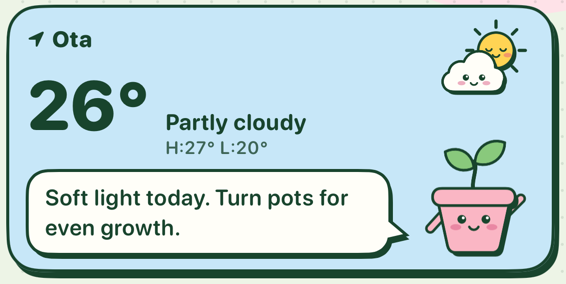
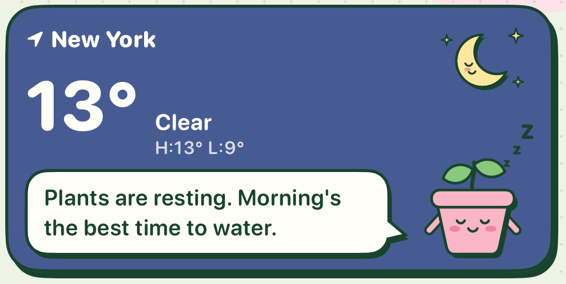
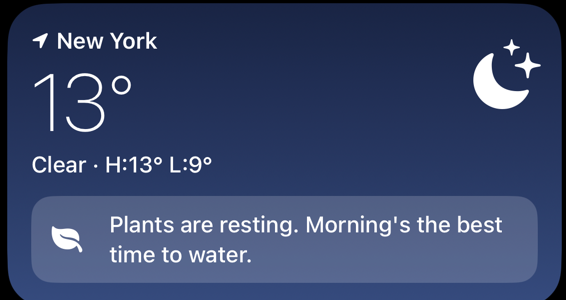
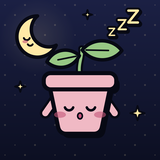
Today opens with the forecast for your town and a plant tip for it. The pressing weather comes first: storms, snow, frost, rain, then heat, wind and sun. A little mascot reacts to all of it.
The card is optional. It asks for your approximate location only when you tap "Use my location".

CH 05
Cute, or not
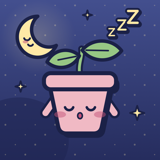
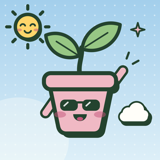
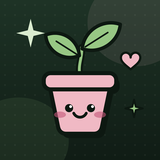
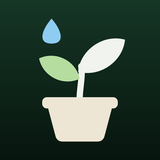
Cute mode is the default: matcha and sakura colours, sticker outlines and dotted paper, down to the tab bar. Un‑cute mode in Settings switches the whole app to the standard iOS look.
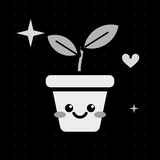
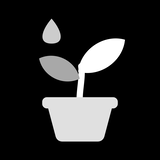
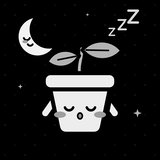
Four Home Screen icons, each with dark and tinted versions for a dark Home Screen. "Match the look" follows cute or un‑cute mode.
- Default
- Dark
- Tinted



CH 06
Private by design
Your plants and photos never leave your iPhone. There's no account, subscription or ads.
- Runs on
- iPhone
- Requires
- iOS 17
- Network
- Only the optional weather card, which sends an approximate location
- Stores
- One file plus your photos, on the iPhone. Both are part of your normal iPhone backup.
- Backup
- Export your plants and photos as one file, and import it in another copy of Hand Plant.
- Permissions
- Camera, for photo ID · approximate location, only when you tap "Use my location" · notifications, for reminders
- Build
- Native SwiftUI, no third-party code · 22 Swift files, about 6,400 lines
CH 07
A freeboot of Plantora
Kept
- Watering and feeding reminders
- A plant library with care guides
- Identify a plant from a photo
Cut
- Community feed
- AR placement
- An AI plant generator
- An "AI botanist" chat
CH 08
Questions
The schedule doesn't suit my plant.
Always check the soil first. If it's still wet when a reminder comes, long-press the plant and choose Soil still wet; future intervals stretch to match. If you water early because the soil was dry, choose Soil was already dry and they shorten. You can also set your own fixed schedule on the plant's screen.
Photo ID didn't find my plant.
Photo ID narrows the list; it can't be certain. Try a well-lit photo of the whole plant, or search the library by common name, scientific name or nickname. If your plant isn't in the library, add it as a custom plant with your own name and watering schedule.
I'm not getting reminders.
Check Settings → Hand Plant → Notifications on your iPhone, and the reminder time in Hand Plant's own Settings. Focus modes can also hold notifications back.
I don't want the weather card, or it shows the wrong town.
Turn it off in Hand Plant → Settings → Weather. The town comes from your iPhone's approximate location; if the iPhone can't get a location, the app shows the forecast for the last place it had.
How do I keep my plants if I get a new iPhone?
Hand Plant's data is part of your normal iPhone backup. Restore your new iPhone from an iCloud or computer backup and your garden comes with it. Please don't delete the app to fix a problem: that deletes your plants.
Where are the photo credits?
Every photographer is credited in Hand Plant → Settings → Photo credits, and tapping the ⓘ on an example photo shows its credit.
Preparing
Example plant photos come from Wikimedia Commons and iNaturalist under Creative Commons or public-domain licences. Photo ID builds on Meta's DINOv2 image model (Apache 2.0). Forecasts from MET Norway. Hand Plant isn't affiliated with Plantora.
Next All tools →